
Last updated on January 8, 2026
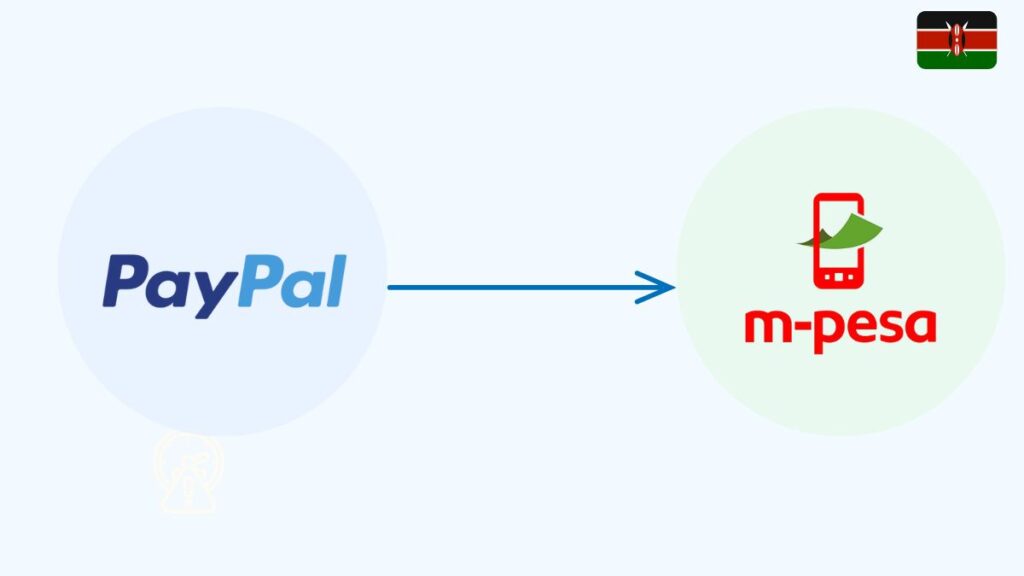
To transfer money from PayPal to MPESA in Kenya, simply log in to your PayPal account, select “Withdraw” or “Send to mobile wallet,” choose M-PESA as the destination, enter your Safaricom number, and confirm the amount — the funds then move into your M-PESA wallet within minutes to days, depending on verification and volume.
If you’ve ever wondered, “Is linking PayPal to M-PESA enough, or do I still need to pick a special withdrawal route?” — this guide walks you through each step, and highlights the fees, exchange rates, and limits you’ll commonly meet as a Kenyan user.
Table of Contents
What You Need Before Starting
- A working PayPal account
- A Safaricom M-Pesa number
- Both names must match
- A positive PayPal balance
- Internet access to log in
How to Transfer Money From PayPal to MPesa (Step-by-Step)
These are the official steps:
- Open the PayPal Mobile Money website.
- Log in with your PayPal email and password.
- Select Withdraw from PayPal.
- Enter the USD amount you want to withdraw.
Review:
- KES amount
- Exchange rate
- Withdrawal fee
- Tap Confirm.
- Wait for the M-Pesa SMS when the money reaches your wallet.
How Long Does PayPal to MPesa Take?
Most transfers are completed within minutes. Large amounts may take longer depending on PayPal’s internal checks.
Can You Transfer Money From PayPal to MPesa Without a Card?
Yes. No credit card or debit card is required. The system works using your PayPal balance only.
Troubleshooting: Why Is My Withdrawal Failing?
Common reasons include:
- Mismatched PayPal and M-Pesa names
- Trying to withdraw more than the daily M-Pesa limits
- PayPal asking for identity verification
- Internet or M-Pesa network issues
- Incorrect phone number linked
- Fix the issue and retry.
Alternative Withdrawal Method in Kenya
You can withdraw to a Kenyan bank account, but this normally takes 1–5 business days, which is slower than M-Pesa.
FAQs
1. How do I transfer money from PayPal to MPesa directly?
Use the PayPal Mobile Money service — the only official method in Kenya.
2. How do I transfer money from PayPal to MPesa without a bank?
You don’t need a bank account; withdrawals go straight to your Safaricom line.
3. Can I transfer money from PayPal to MPesa via SMS?
No. There is no SMS withdrawal option. Only the official website works.
4. Why is my PayPal withdrawal pending?
PayPal may be reviewing your transaction, especially if it is a first-time or high-value withdrawal.
5. How do I know the money has arrived?
You will receive an M-Pesa SMS immediately once the funds are deposited.
Do You Need a Bank Account?
No. The transfer does not require a Kenyan bank account. Everything is handled through PayPal + Safaricom.
Many people also search for how to deposit money from MPesa to PayPal, so we created an easy 2-minute guideshowing the exact steps.
Quick Recap
- Log in to the PayPal Mobile Money website
- Select Withdraw from PayPal
- Enter the amount you want to send to M-Pesa
- Check the exchange rate and fee
- Confirm and wait for the M-Pesa SMS

Tarun Asrani is the founder and editor-in-chief of SmartAfricaGuide. With extensive experience in digital publishing and content strategy, he leads the platform’s focus on finance, scholarships, e-learning, and career opportunities shaping Africa today. Tarun visits Africa twice a year, gaining first-hand exposure to local education systems, job markets, and emerging technologies. He also closely follows African news, university updates, and government initiatives to ensure SmartAfricaGuide delivers timely, accurate, and practical insights grounded in real regional experience.