
Last updated on January 8, 2026
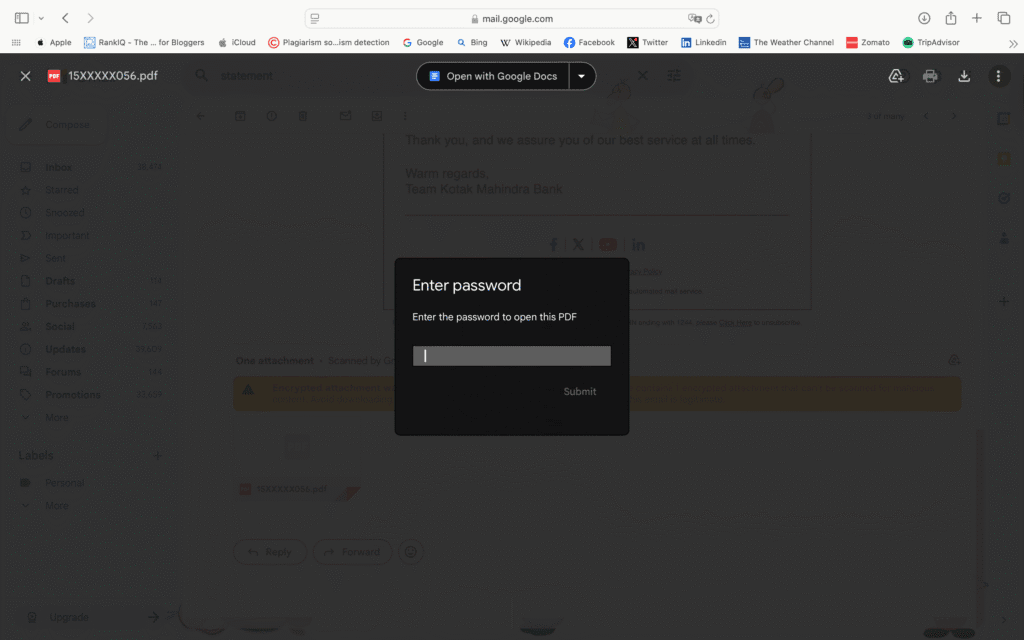
There are times when a file opens, but not without a password, and this happens often with PDFs. If that has you searching for how to remove a password from a PDF file, you are far from the only one. It can become tiring, especially when it is a file you use often.
To be clear, the process should only be done if the file is your own or shared with permission. Ignoring that may not be legal. Many people in South Africa receive protected PDFs from schools, banks, or municipal offices. These files are usually safe, but constantly unlocking them takes time.
In this blog, we will mention different ways to open such files permanently without requiring you to enter the password every single time. Irrespective of whether you are using a laptop or a mobile device, the steps we have mentioned are simple.
They do not involve any complex software. Everything that we have mentioned below works with tools that most users are already familiar with.
Table of Contents
Why Remove a Password from a PDF File?
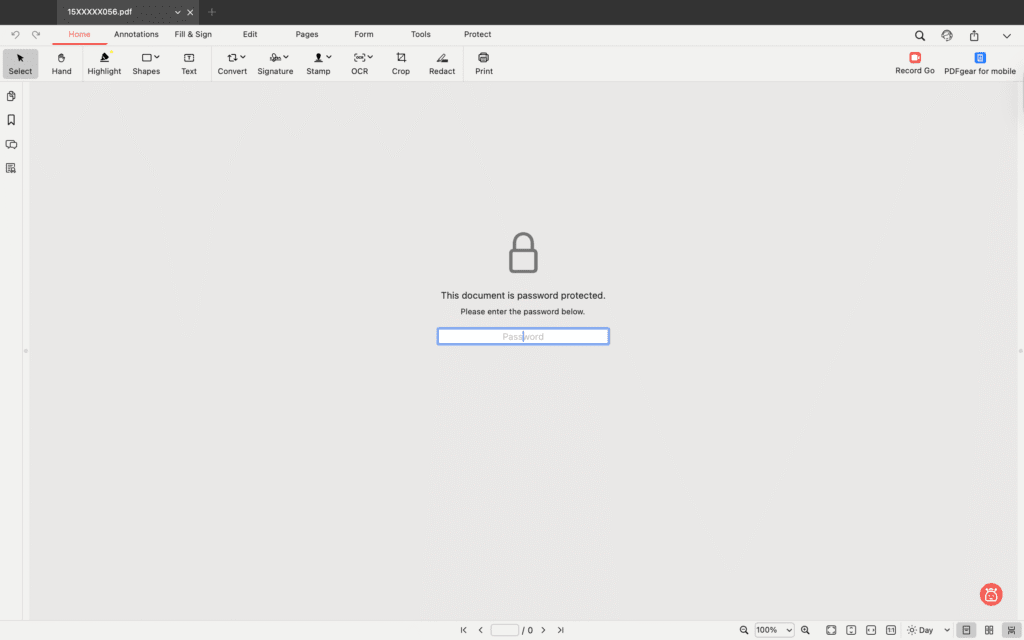
Some PDF files are opened once and forgotten. Others – like bills, ID forms, or application documents – need to be accessed again and again. Each time, the password slows things down. Removing that layer makes daily use smoother, especially when the document is safe and belongs to you.
There are different free methods available that work well depending on what device is being used. Whether on a phone or desktop, most people can manage the task in just a few steps.
If the question is how to remove password from PDF file for free, this blog breaks down several ways to do it securely and legally using tools that are either already installed or easy to access.
Method 1 – How to Remove Password from PDF File When inside Windows 10
Many people on Windows already have everything needed to unlock their own PDF without installing anything new. The only thing required is the password itself. Two simple approaches typically resolve the issue.
Option 1: Adobe Acrobat Reader with Microsoft Print to PDF
Most Windows laptops come with these tools. Try this sequence:
- Open the PDF after starting the Adobe Acrobat Reader
- Type the password when the pop‑up appears
- Go to File and pick Print
- Under printers, choose Microsoft Print to PDF
- Press Print, then save the file with a new name
The saved copy is the same document, but without the password barrier.
Option 2: Use the Browser Already Installed
Chrome or Edge can also do it:
- Right‑click your PDF and open it in Chrome or Edge
- Enter the password
- Press Ctrl + P or tap the print icon
- Change “Destination” to Save as PDF
- Hit Save and choose where to store the new file
Both of these methods answer the question of how to remove a password from the PDF file in Windows 10 and work well on common laptops across South Africa.
Method 2 – How to Remove Password from PDF File in Preview (Mac Users)
If you find the file opening on a Mac device, you do not need to use additional software. The built-in Preview app already consists of everything you need to remove the password. The only caveat is that you should be able to open the PDF file.
Here is how to go about it:
- First, open the PDF using Preview
- When prompted, enter the password
- Click File at the top left
- From the dropdown, choose Export
- In the export window, select PDF as the format
- Uncheck the box labeled Encrypt
- Save the new file where it is easy to find
That version will now open without asking for a password. Many Mac users do not realise this function exists. It is helpful for handling documents like statements, registration letters, or invoices that come password-protected.
Anyone wondering how to remove a password from a PDF file in Preview will find this the fastest and cleanest method. No tools to install. No risk of upload. The entire process occurs on the device and takes less than a minute to complete.
Method 3 – How to Remove Password from PDF File Online (Free Tools)
There are moments when a computer does not allow new software, or maybe there just is not enough space left on the device. That is when using a browser-based tool makes sense. These online options can unlock a file without needing anything else, just a bit of internet and the original password.
How to Remove a Password from the PDF File Online Free
A few websites make this easier than most people expect. The steps usually look like this:
- Open a site such as Smallpdf, PDF.io, or iLovePDF
- Find the tool that unlocks PDF files
- Upload the document from your folder
- Type in the password when asked
- Click “Unlock” or whatever the site shows
- Download the new copy that opens freely
This method is good for handouts, school notes, or documents that are not too private. Anyone wondering how to remove a password from a PDF file online for free, or looking for a free way to do it online, can try this route.
Security Note for Online Tools
Just a heads-up: not all files are safe to upload. In South Africa, some PDFs carry financial or medical details. Those should never be sent to a public website, even trusted ones.
Use online tools for low-risk files only. For anything official or sensitive, it is better to stick with offline tools on a personal device.
Method 4 – How to Remove Password from PDF File on Android
When a file is sent via a phone and repeatedly requests a password, it becomes a hassle, especially if the file needs to be checked multiple times. On Android, there are two ways to save a PDF version that does not need a password again.
Both work well as long as the original password is known.
Option 1: Use Google Drive
- Upload the PDF to Google Drive
- Open it from there using the built-in viewer
- Type the password when prompted
- Tap the three dots on the top right
- Select Print
- Choose Save as PDF
- Save the file locally
Option 2: Make effective use of Adobe Acrobat Reader
- Open the file with the help of the Adobe Acrobat app
- Enter the password
- Click on the menu on the visible three dots or lines
- Choose Save a copy
- Select the option for an unsecured version
These steps are essential for anyone looking to get an answer to the question of how to remove password from PDF file on Android. The good thing is these steps work even when there is no laptop nearby. They are helpful for people who manage official documents via WhatsApp, email, or app downloads.
Method 5 – How to Remove Password from PDF File Using Chrome
Google Chrome can do more than just browse the web. It can also unlock a PDF, without needing any extra software. If the password is already known, Chrome can create a fresh copy that opens without asking for it again.
Here is how it works:
- Drag and drop the locked PDF into an open Chrome tab
- Enter the password when the prompt appears
- Press Ctrl + P to open the print screen
- Under “Destination,” choose Save as PDF
- Click Save
- Pick where to store the new version
That new file no longer asks for a password.
This is useful when dealing with files on a shared system or when PDF software is not installed. For anyone looking up how to remove a password from a PDF file using Chrome, this is one of the easiest fixes available.
It is especially helpful in offices or internet cafés where users work with forms, reports, or statements and just need a quicker way to access them.
If You Forgot the Password
A locked PDF can be a problem when the password is no longer available. But before deleting the file or trying random software, a few safer options are worth trying.
Here are some things that often help:
- Check the original message or email where the file came from
- Ask the sender if they can share the password again
- Look through saved entries in your web browser or password manager
- If possible, request the same document in a non-protected version
In most cases, one of those steps is enough to recover access.
Avoid using tools that try to force open a PDF. Many of them can damage the file or install malware. If you are trying to unlock the PDF file of someone else without their consent, it may go against legal rules. If the file is not yours and there is zero permission to edit, it is better not to open it as the best course of action.
Quick Safety Tips
Before trying how to remove password from PDF file, it helps to save a copy somewhere else. If the file erases or something happens to it, you also have the backup of the original file.
Whenever you get a file from some unknown person or the name looks off, the best resort is to scan it with an antivirus. It hardly takes a few seconds, but it can help you avoid problems in the future.
Many people in South Africa store their paperwork in cloud storage. It is not just about space; places like Google Drive and OneDrive help keep things organized.
One more thing, avoid sending important stuff like IDs or statements to random websites. If the file feels private, it probably is. Use offline tools when it matters.
FAQ Section (Schema-Ready)
Q1: Any simple way to stop a PDF from asking for a password every time?
A: Try to open the PDF with the available password. Then, save it in the browser. Chrome does it, or that Preview thing on Mac. Adobe too. Once you save a new version, that one won’t ask again.
Q2: Can I remove password restrictions from a PDF?
A: You can, yeah, but only if it’s your file. Or if someone said you could. If not, it’s best not to touch it. It might be protected for a reason.
Q3: What works best to unlock a PDF?
A: Depends on the file and the device. Some use the default app. Others go online. But only do that if it’s not a personal doc. Otherwise, stick to what’s already on your laptop.
Q4: Any apps to remove passwords from PDFs on Android devices?
A: UnlockPDF can help remove passwords from PDF.
Conclusion
There are a few ways for how to remove password from PDF file safely, and most of them take less than a minute when you know where to look. On Windows, the print-to-PDF method works well. Mac users can rely on Preview to save a new copy.
If no apps are available, a trusted online tool may help, just avoid uploading anything private. For those using phones, Android apps like Google Drive or Adobe Acrobat can get the job done. Chrome also works surprisingly well across devices.
Anyone still wondering how to remove the password from a PDF file should find one of these options useful. Each method is legal, simple, and doesn’t require buying expensive software.
This is the kind of guide worth keeping. Bookmark it, just in case another locked file shows up when you least expect it.
If the problem is not a password but the file type itself, check our step-by-step guide on How to Open an Unknown File.
Disclaimer: This guide is for educational purposes only. Remove passwords only from PDFs you own or have permission to edit. Smart Africa Guide is not responsible for misuse or violation of file security laws.

Tarun Asrani is the founder and editor-in-chief of SmartAfricaGuide. With extensive experience in digital publishing and content strategy, he leads the platform’s focus on finance, scholarships, e-learning, and career opportunities shaping Africa today. Tarun visits Africa twice a year, gaining first-hand exposure to local education systems, job markets, and emerging technologies. He also closely follows African news, university updates, and government initiatives to ensure SmartAfricaGuide delivers timely, accurate, and practical insights grounded in real regional experience.